Compare Project Versions
Written By Team BugSmash
Last updated 5 days ago
When a project goes through multiple rounds of feedback, it can be difficult to remember exactly what changed between one version and another.
Version Comparison lets you compare different versions of the same project, review changes, check whether feedback has been implemented, and see how the project has improved over time.
For example, you can compare V1 and V2 to see what changed, review the feedback from the previous version, and check how the latest version looks after those changes were made.
How to access Version Comparison
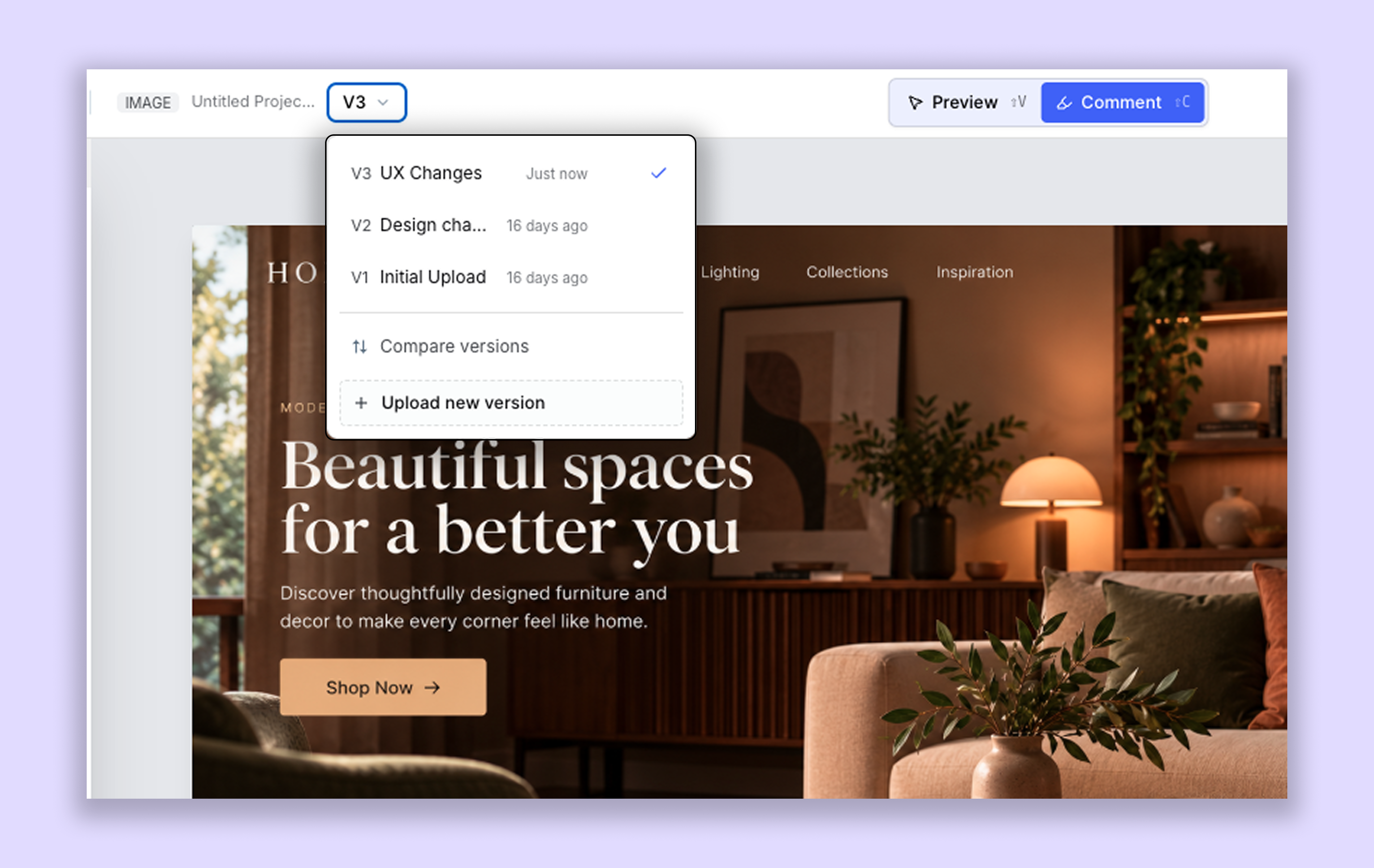
You can find Version Comparison in the top-left corner of the project review page.
Once you open it, you'll see two versions displayed in the comparison view. You can select the versions you want to compare using the dropdowns at the top of each side.
For example:
V1 ↔ V2
You can compare any number of versions available in your project by selecting the versions you want to review.
Choose your comparison mode
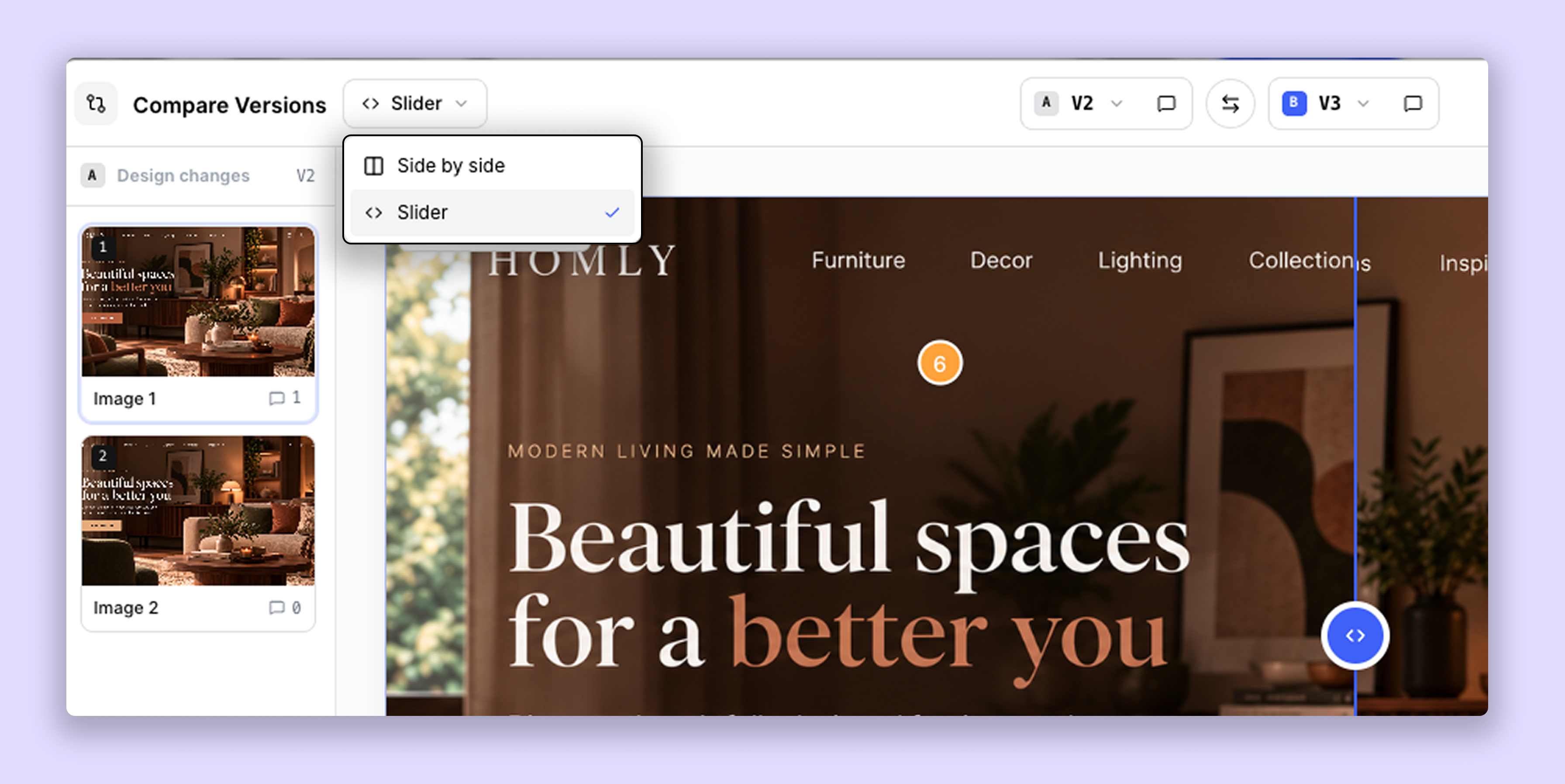
BugSmash offers two different ways to compare versions. You can choose your preferred mode using the comparison mode dropdown.
1. Side by Side
The Side by Side mode displays both versions next to each other in a full-view layout. This allows you to inspect both versions simultaneously and spot changes directly.
2. Slider
The Slider mode lets you move between the two versions using a slider, revealing different parts of each version so you can see exactly what has changed.
Choose whichever mode works best for your review.
Switch Versions
Use the Switch Versions button at the top of the comparison view to swap the positions of the two selected versions.
For example, if V1 is displayed on the left and V2 on the right, you can switch their positions with a single click.
Link and Unlink Pages
When comparing files with multiple pages, you can choose whether to link or unlink pages.
Link Pages: Navigating to a page in one version automatically moves the other version to the corresponding page. This makes it easier to compare the same page across different versions, even when content or images have moved.
Unlink Pages: Navigate through each version independently. This is useful when the versions have different page structures or when you want to compare different pages.
For example, linked pages let you compare V1 Page 2 with V2 Page 2, while unlinked pages let you compare V1 Page 2 with V2 Page 4.
Review comments while comparing
You can choose whether comments are visible while comparing versions.
Each side of the comparison has its own Comments toggle, allowing you to show or hide comments independently.
For example, you can keep comments enabled on the older version to review the original feedback while turning them off on the newer version to focus only on the changes. You can also enable comments on both versions to review feedback alongside the updates.
AI Analyse: Check whether feedback has been addressed
You no longer have to manually go through every comment to figure out whether the requested changes have been made.
Use AI Analyse at the top of the Version Comparison view. It automatically checks the comments added to your project and analyses whether the requested changes have been addressed in the newer version.
It considers both active and resolved feedback, helping you understand which suggestions have been catered to and which may still need attention.
This makes reviewing updated versions faster and helps you avoid overlooking important feedback.
Supported file types
Version Comparison now supports all BugSmash file types, including HTML and email files.
Website project comparison is not available yet, but support for it is coming soon.
A simple example
Let's say a designer uploads V1 of a design.
You review it and leave several comments requesting changes, such as increasing the button size or changing the banner image.
The designer then uploads V2 after making those updates.
Instead of opening V1 and V2 separately, you can open Version Comparison and review both versions together.
You can then:
Select V1 on one side and V2 on the other.
Choose Side by Side or Slider mode.
Enable comments to review the original feedback.
Link or unlink pages depending on how you want to compare them.
Switch the positions of the versions if needed.
Use AI Analyse to check whether the feedback from V1 has been addressed in V2.
This gives you a much clearer view of how the project has evolved from one version to the next, without having to manually track every change.
Why use Version Comparison?
Version Comparison makes it easier to manage projects that go through multiple rounds of feedback and revisions.
With these features, you can:
Compare different versions without opening them separately.
Choose between Side by Side and Slider viewing modes.
Review feedback alongside the latest changes.
Use AI Analyse to check whether feedback has been addressed.
Navigate corresponding or independent pages.
Switch the positions of the versions.
Everything stays within the same project, making it easier for teams and clients to review progress and keep track of changes.
Was this helpful?
Still need help? Ask the team