AI Reviews
Written By Team BugSmash
Last updated 10 days ago
Why it's useful
Reviewing websites, designs, PDFs, and marketing assets manually can be time-consuming, and important issues are often missed.
The AI Review Assistant helps you identify potential design, UX, accessibility, and content issues within seconds. It automatically analyzes your content and generates actionable feedback directly inside BugSmash.
Supported Content Types
AI Review supports the following content types:
Websites – Enter a live website URL.
PDF – Upload a PDF document.
Images – Upload images and ad banners.
PPT – Upload PowerPoint presentations.
HTML – Upload an HTML project.
DOC – Upload Word documents.
Starting an AI Review
You can start an AI Review in two ways.
1. From the Dashboard
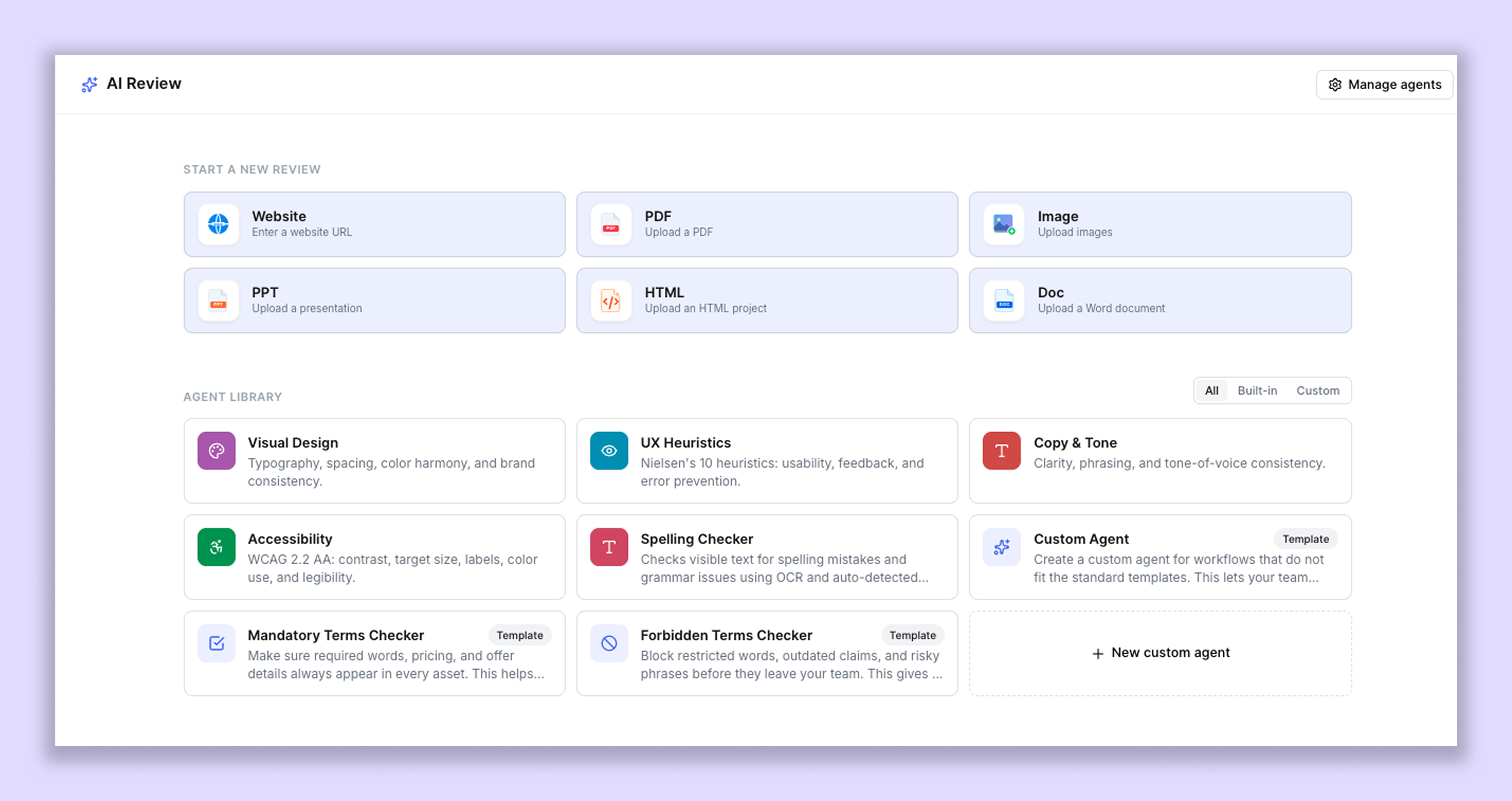
Open the Dashboard.
Click AI Review from the left sidebar
Select the content type you want to review.
Upload your file or enter your website URL.
Choose the AI Reviewers you want to use.
Click Continue to start the review.
2. From the Project Review Page
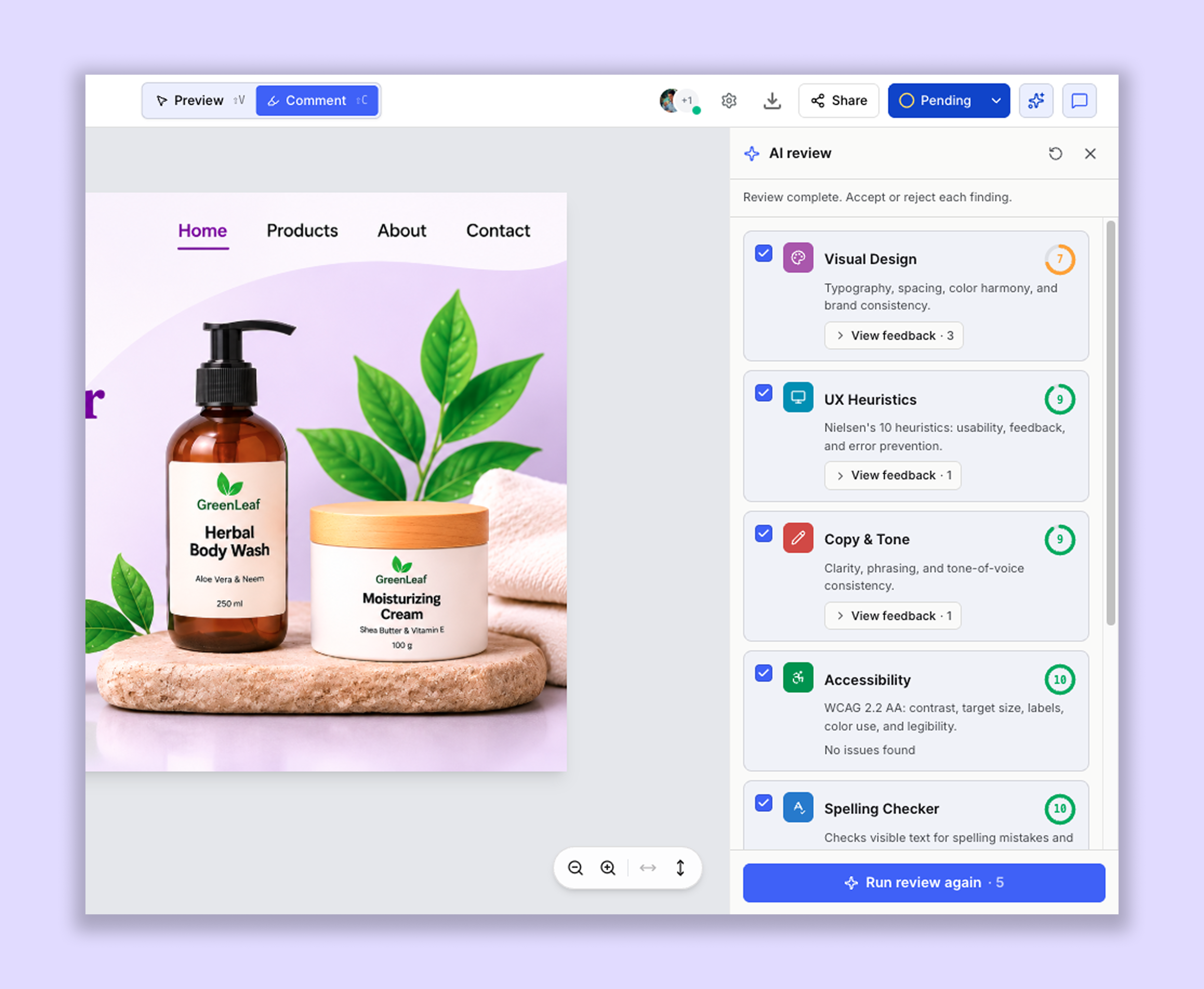
Open the project you'd like to review.
Open the AI Review from the top right corner
Select the AI Reviewers you want to run.
Start the review.
You can also run AI Reviews directly from the project without going back to the Dashboard.
Selecting AI Reviewers
Choose the type of feedback you'd like BugSmash AI to provide.
The Agent Library includes the following built-in reviewers:
Visual Design: Reviews typography, spacing, color harmony, and brand consistency.
UX Heuristics: Uses Nielsen's 10 heuristics to identify usability issues, feedback problems, and potential errors.
Copy & Tone: Reviews clarity, phrasing, and tone-of-voice consistency.
Accessibility: Checks WCAG 2.2 AA considerations, including contrast, target size, labels, color use, and legibility.
Spelling Checker: Checks visible text for spelling and grammar issues using OCR and automatically detected text.
You can also create and use custom AI Agents for your team's specific review requirements.
Custom AI Reviewers
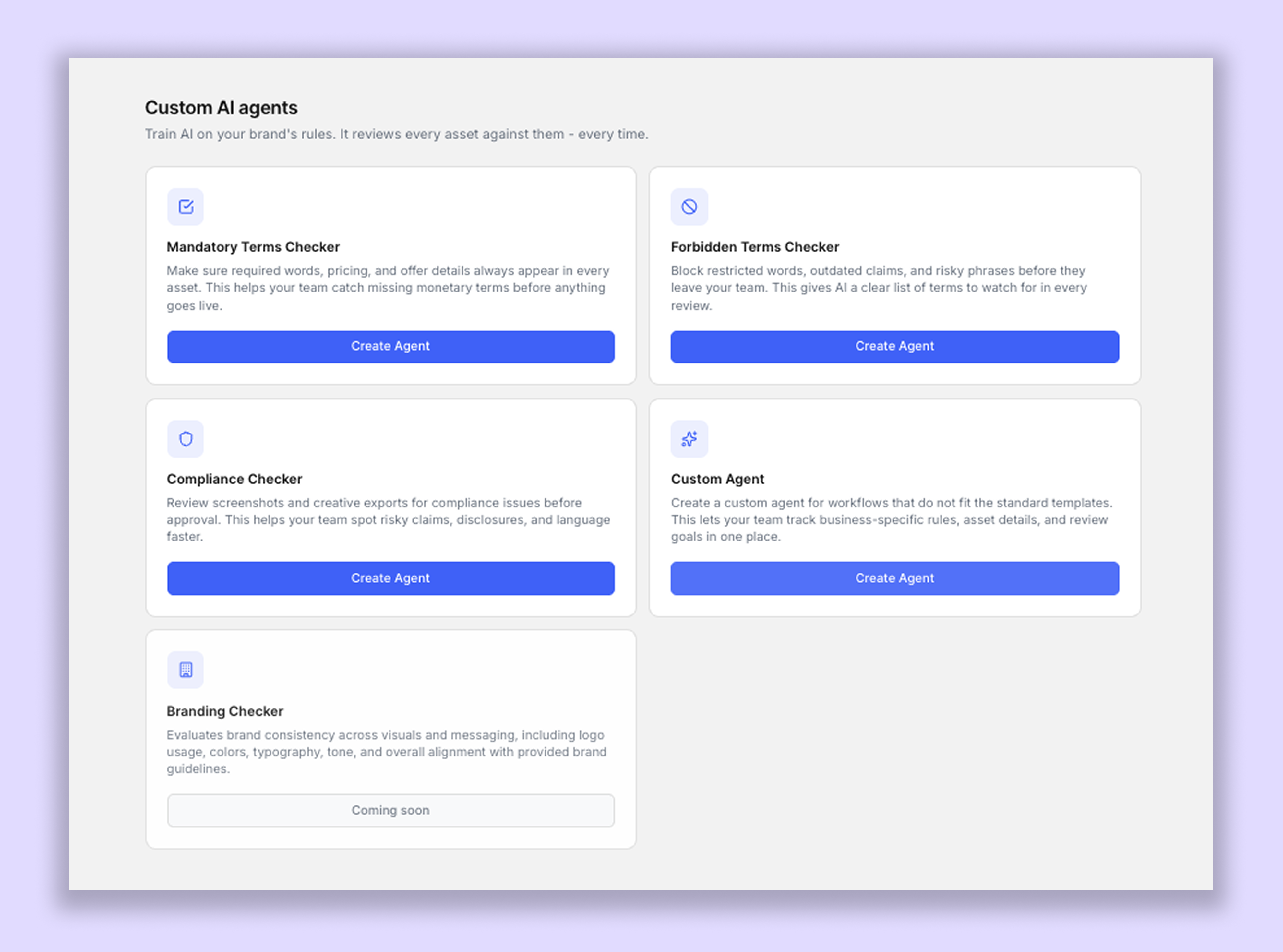
You can also create custom AI Reviewers with your own instructions and review guidelines. This lets your team review content against specific requirements, such as brand guidelines, internal QA standards, compliance requirements, marketing best practices, or custom review checklists.
To create a custom AI Reviewer, open Workspace Settings using the settings icon in the top-left corner of the Dashboard and navigate to Custom AI Reviewers. From there, you can create a new reviewer, define its instructions and guidelines, and save it. Once created, your custom reviewer will be available in the Agent Library and can be selected when starting an AI Review.
The Agent Library also provides ready-made templates for specific review requirements. The Mandatory Terms Checker helps ensure your assets include required words, pricing, and offer details. The Forbidden Terms Checker helps identify restricted words, outdated claims, and potentially risky phrases before they reach your audience.
You can combine built-in AI Reviewers and custom AI Reviewers in the same review. This gives your team the flexibility to run general design, UX, accessibility, and content checks alongside reviews based on your own brand and business requirements.
Running Multiple AI Reviews
You can run multiple AI Reviews at the same time by selecting multiple agents.
If you only need feedback from one specific reviewer, you can run an individual review by selecting that agent directly from the AI Review section.
Each selected agent runs its own review, and each review consumes one AI Review token.
AI Review Tokens
AI Reviews use a token-based system.
Each AI Review consumes one token.
For example:
Running one AI Reviewer consumes 1 token.
Running three AI Reviewers consumes 3 tokens.
Running multiple reviews simultaneously consumes tokens according to the number of reviews started.
You can run as many reviews at once as you want, provided you have enough available tokens.
Reviewing and Approving AI Suggestions
AI-generated suggestions are not immediately added as project comments.
When an AI Review is completed within a project, the generated review appears in the AI Review section.
The generated results are initially visible only to the person who ran the review. That person can review the suggestions and decide whether to accept or ignore them.
You have two options:
Accept AI Suggestions
When you accept a generated review, its suggestions are added as regular project comments and become visible to all users who have access to the project.
Ignore AI Suggestions
If you ignore a generated review, it is deleted and will no longer be available in the project.
This approval process ensures that only reviewed and accepted AI feedback becomes part of the project.
About the Spelling Checker
The Spelling Checker does more than identify spelling mistakes.
It can also:
Suggest grammar improvements.
Improve sentence structure.
Recommend clearer wording.
Identify awkward phrasing.
Suggest stronger copy and messaging.
This makes it especially useful for websites, landing pages, advertisements, PDFs, presentations, and other customer-facing content.
Example
A marketing agency uploads a landing page and selects the UX Heuristics and Copy & Tone reviewers.
The AI identifies navigation issues, highlights unclear messaging, and suggests stronger calls-to-action.
The generated reviews appear in the project's AI Review section. The person who initiated the reviews can inspect the suggestions and accept the relevant ones. Once accepted, the suggestions become regular project comments visible to the rest of the project team.
Tips
Combine reviewers strategically for more focused feedback, such as UX Heuristics + Copy & Tone.
Run individual reviews when you only need feedback from a specific agent.
Use the Spelling Checker for content-heavy pages, advertisements, and marketing assets.
Use custom AI Reviewers to enforce internal guidelines and brand requirements.
Use Mandatory Terms Checker and Forbidden Terms Checker to validate specific content requirements.
Re-run reviews after major revisions to identify newly introduced issues.
Always validate important AI recommendations with human review before accepting them.
Note: AI Review may occasionally produce inaccurate or incomplete results. Always validate important decisions with human review.
Was this helpful?
Still need help? Ask the team