Zoho Projects Integration
Written By Team BugSmash
Last updated 15 days ago
Connect BugSmash with Zoho Projects to keep your feedback and tasks synchronized across both platforms. With two-way sync, your team can continue working in either tool while keeping comments and their status updates connected.
Connect Zoho Projects
You can connect Zoho Projects with BugSmash and link your BugSmash projects to the relevant Zoho Projects project.
To get started:
Open Workspace Settings in BugSmash.
Navigate to Integrations.
Find Zoho Projects and connect your account.
Follow the authorization steps to allow BugSmash to access your Zoho Projects account.
Open the BugSmash project you want to connect.
Go to Project Settings → Integrations.
Select Zoho Projects and choose the relevant Zoho project.
Complete the connection.
Your BugSmash project is now connected to Zoho Projects.
User Mapping
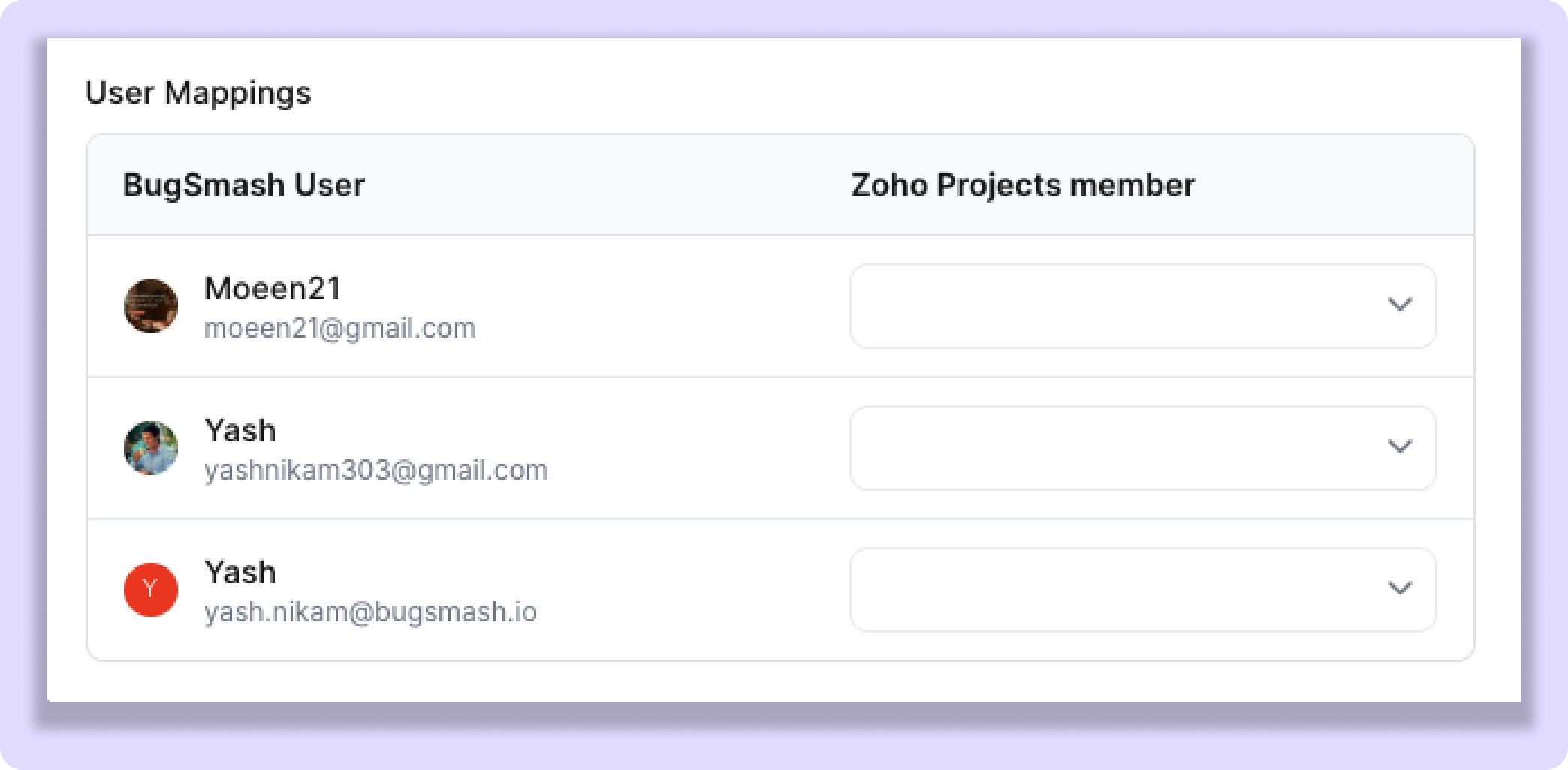
User Mapping helps BugSmash match your workspace members with their corresponding Zoho Projects users. This ensures that task assignments are sent to the correct people across both platforms.
How to Set Up User Mapping
Go to Workspace Settings in BugSmash.
Open Integrations.
Click the Settings icon next to Zoho Projects.
Open User Mapping.
Match each BugSmash user with their corresponding Zoho Projects user.
Save your changes.
Once configured, assignments can stay synchronized between both platforms.
Enable Two-Way Sync
Why is this required?
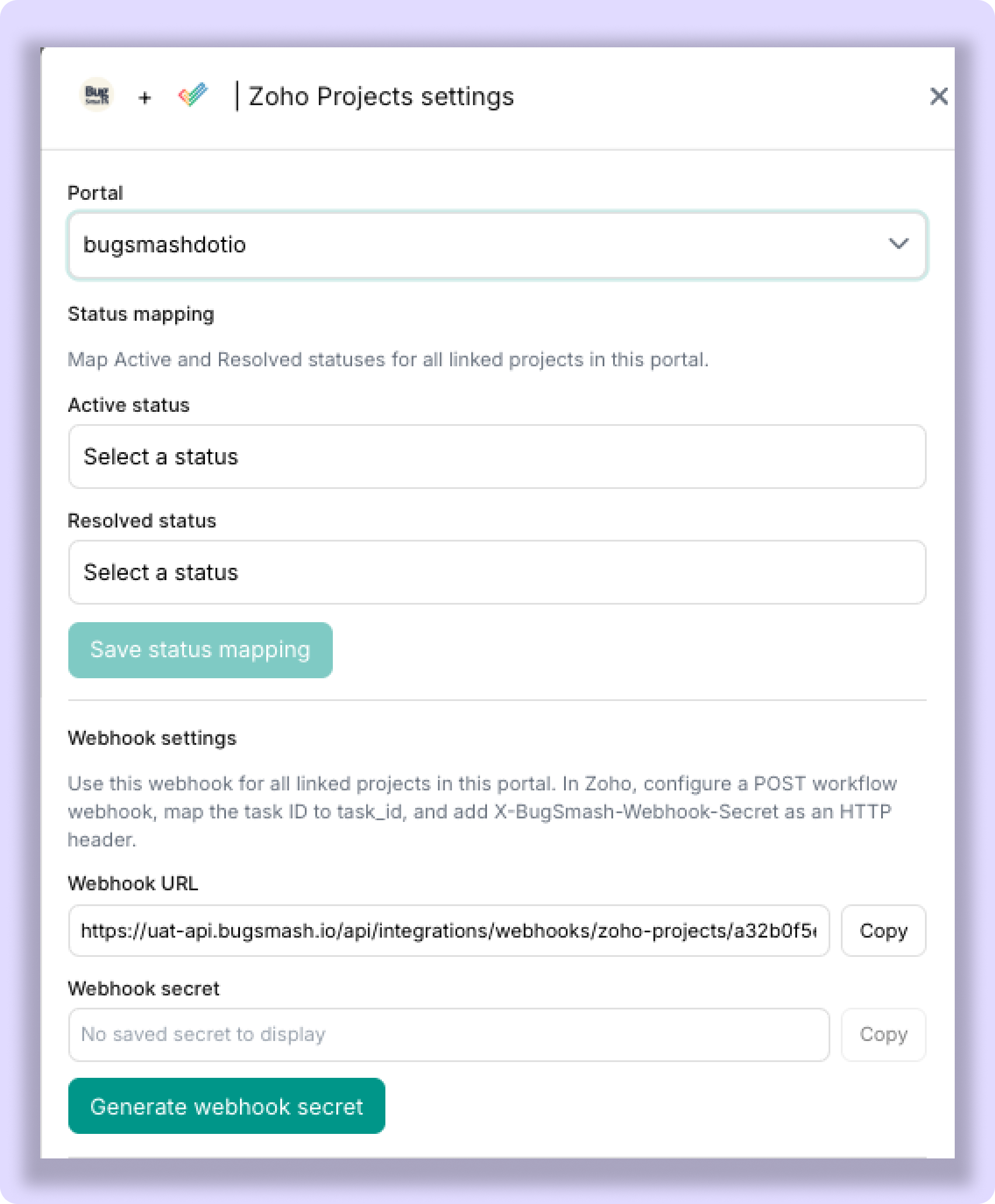
Connecting Zoho Projects allows BugSmash to send feedback to Zoho. However, if you also want changes made in Zoho Projects to appear in BugSmash, you need to configure a webhook and workflow rules.
This allows Zoho Projects to notify BugSmash whenever a connected task is updated.
Follow the steps below to complete the setup.
Step 1: Create a Webhook in Zoho Projects
First, create a webhook that sends task updates from Zoho Projects to BugSmash.
Open Zoho Projects.
Navigate to Setup → Automation → Webhooks → Tasks.
Click to add a new webhook.
Configure the following details:
Webhook Configuration
Parameters
Headers
Important: Add the webhook secret under Headers, not Parameters. You can leave Zoho's HMAC Security Settings toggle disabled when using this authentication method.
Click Save or Update.
Your webhook is now created.
Step 2: Create a Workflow Rule for Task Updates
Next, configure Zoho Projects to trigger the webhook whenever a connected task is updated.
Go to Setup → Automation → Workflow Rules → Task.
Create a new workflow rule.
Name it Sync task updates to BugSmash.
Select the layout used by your connected project, or choose All Layouts.
Under When to execute, select Updated.
Select the fields you want to monitor:
Status
Priority
Owner
Name
Description
Select the available fields relevant to your workflow.
Set the Criteria
Make sure the rule applies to tasks in your connected Zoho project, including both open and closed tasks.
Why is this important? If you select only closed tasks, changes made when a task is reopened won't be synced. Including both open and closed tasks ensures status changes are picked up in either direction.
Add the Webhook Action
Under Actions, associate the BugSmash Sync webhook you created earlier.
Save the workflow rule.
Make sure the rule is enabled.
Now, whenever a matching task is updated in Zoho Projects, the webhook will notify BugSmash.
Step 3: Enable Comment Sync (Optional)
If you also want comment and reply activity from Zoho Projects to be sent back to BugSmash, configure a separate workflow trigger for comments.
Open Setup → Automation → Workflow Rules → Task.
Create another workflow rule.
Name it Sync task comments to BugSmash.
Select the Commented trigger, if available in your Zoho Projects portal.
Associate the same BugSmash Sync webhook.
Save and enable the rule.
If Zoho requires a separate rule for comment activity, keep it separate from the task update rule.
Note: If the Commented trigger isn't available in your Zoho Projects portal, this method won't trigger comment synchronization. You'll need another supported Zoho trigger source for comment events.
What Gets Synced?
Once you complete the integration and webhook configuration, supported feedback activity stays synchronized between BugSmash and Zoho Projects.
BugSmash → Zoho Projects
The following activities can be synced:
New Comments: New feedback added in BugSmash is sent to the connected Zoho task.
Comment Updates: Changes made to existing comments are reflected in Zoho Projects.
Comment Replies: Replies can be synced to the related task.
Status Changes: When a comment is marked as Resolved or Unresolved in BugSmash, the corresponding task status can be updated in Zoho Projects.
Zoho Projects → BugSmash
With the webhook and workflow rules enabled:
Task Updates: Supported changes to connected tasks are sent back to BugSmash.
Status Changes: Changes between open and closed task statuses can update the corresponding feedback status in BugSmash.
Comment Activity: Comment events can be sent back when the Commented workflow trigger is configured and supported.
This keeps your feedback connected even when team members work directly from Zoho Projects.
Keep BugSmash and Zoho Projects in Sync
With the Zoho Projects integration, your team can manage feedback in BugSmash while keeping task updates connected to Zoho Projects.
Once the webhook and workflow rules are configured, supported comments, updates, and status changes can flow between both platforms, reducing manual updates and keeping everyone on the same page.
Was this helpful?
Still need help? Ask the team